
Conference Captioning Chrome Extension (On-Device AI for Events)
 Saamer Mansoor••Updated September 26, 2026
Cross-platform live captioning solution for Google Chrome on Windows or Mac
The Conference Captioning Chrome Extension enables real-time,
on-device AI captions for live events, without requiring an Apple
device. This solution is ideal for AV professionals and event
organizers who need a fast, reliable, and low-latency captioning
workflow on Windows. We recommend using our native app on Apple
systems since it takes advantage of the Neural Engine/NPU.
Using
your computer’s microphone or audio feed, the extension captures
speech and delivers highly accurate live captions directly to your
event stream. The Chrome app even mixes any audio being played by a
video playing with what it hears from your mic!
When to Use This Setup:
- You are running events on Windows or non-Apple hardware
- You need real-time captions with minimal latency
- You want speech recognition to run on your own computer instead of a cloud speech service
- You want to try it first: a free premium trial is available with no credit card required
Step-by-Step Setup Guide:
1. Choose Your Caption Stream (Free or Premium)
Every event needs a stream name. Attendees open https://deafassistant.com/{StreamName} (with your stream name in place of {StreamName}) to read the captions, or scan the QR code the extension shows you. After you install the extension (step 2), click its icon, then click Change next to the Stream Name. This opens the dashboard page, where you choose one of two options:
- Premium stream (recommended for real events): click Activate Premium Stream. The dashboard signs you in, activates your premium stream, and links it to the extension. You can start with a free trial, and no credit card is required. Premium gives you your own stream, the ultra-accurate speech models, and extras such as audience questions.
- Free stream (for testing only): click Generate Free Stream for a stream name right away, with no account. Free streams are meant for trying things out and have limited usage time. There are only a limited number of them, so someone else may be using the same free stream at the same time. Don't use one for a live event.
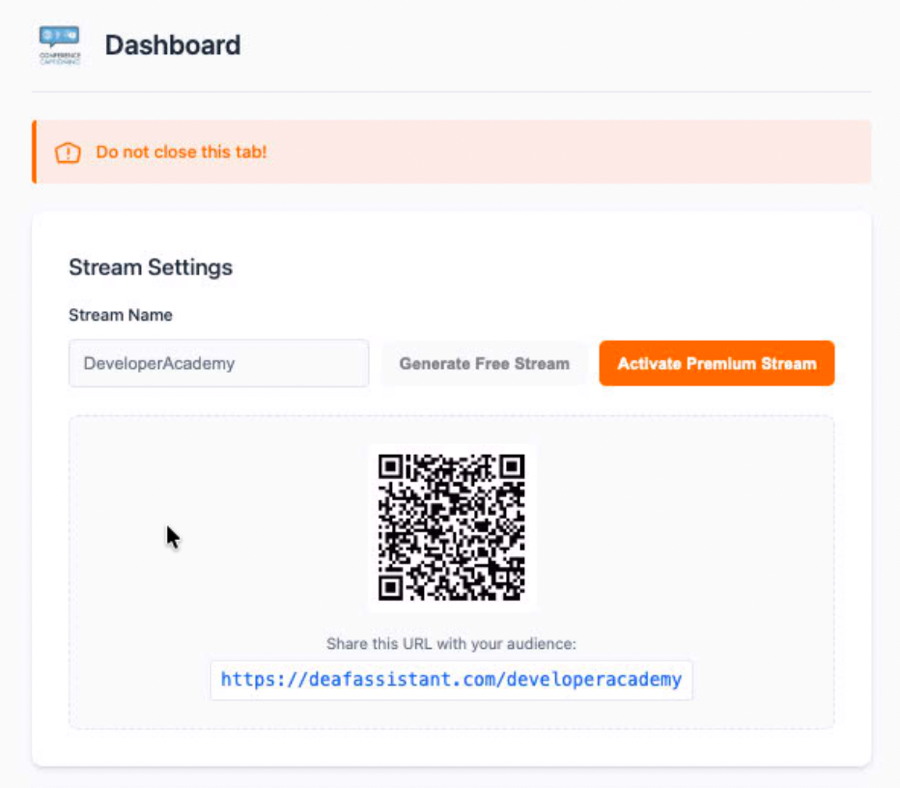
The dashboard also shows the QR code and link (for example deafassistant.com/yourstream) to share with your audience. It updates whenever you change your stream.
2. Install the Chrome Extension
-
Install the extension from the ConferenceCaptioning page on the Chrome Web Store. The default speech model is included, so there is nothing else to download to get started.
-
After it installs, click the Extensions (puzzle piece) icon and pin "ConferenceCaptioning" so it's always one click away

3. Start Captioning and Grant Microphone Permission
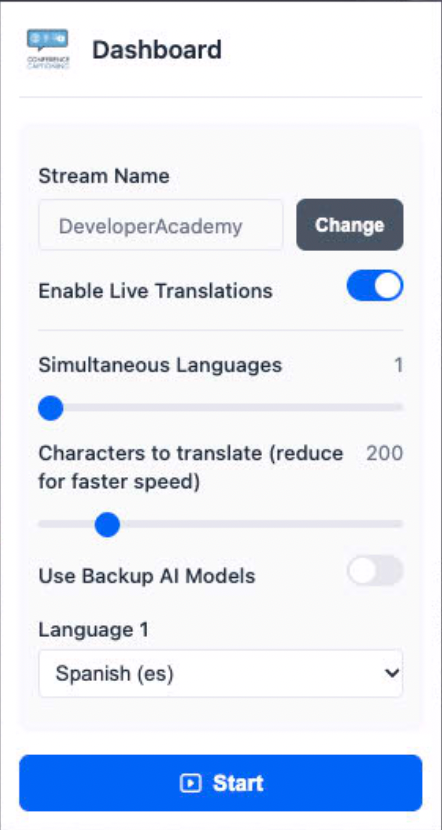
- Open the page you want to caption (your event's video or slides), click the ConferenceCaptioning icon, and press Start. The small window also lets you turn on live translations and choose the languages.
- The extension opens a pinned tab called the dashboard, marked "Do not close this tab!". Captioning runs in this tab, so leave it open for the whole event
- The first time, Chrome asks for microphone access. Click "Allow while visiting the site" so the extension can mix your microphone with the audio playing in the tab
- If you press Deny by mistake, click the three dots to the right of the ConferenceCaptioning pin -> View Web Permissions -> Microphone -> Allow. It will autosave

4. Check What Your Audience Sees
-
Open your stream page:
https://deafassistant.com/{StreamName} (or scan the QR code shown on the extension's dashboard page) - Speak, or play audio in the captioned tab. Captions appear on the page you're captioning within a moment, and on the stream page your attendees see.
- Click the "Show Captions" button on the stream page to see exactly what attendees see. Share the stream link or QR code with your audience.
- To finish, click the extension icon and press Stop.
Choosing a Speech Recognition Model
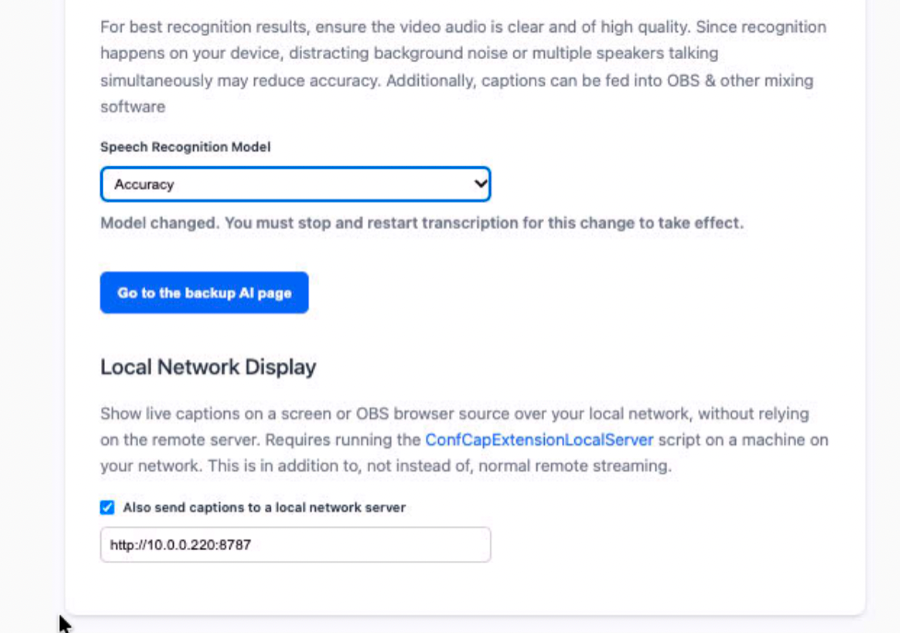
The extension includes several on-device speech recognition models. Scroll down on the dashboard page to "Speech Recognition Model" and pick one. If you change it while captioning, stop and start captioning again for the change to take effect. Captions come with punctuation added automatically, so what your audience reads looks like sentences, not a stream of lowercase words.
- Speed (default, free): built in, no download, and works on any computer. Best for low latency.
- Accuracy (English, Premium): our ultra-accurate model, with punctuation built in. It's a one-time download of roughly 660 MB that Chrome keeps for next time.
- Multilingual (Premium): ultra-accurate recognition of 13 languages (English, French, German, Spanish, Italian, Portuguese, Dutch, Polish, Russian, Ukrainian, Japanese, Korean and Chinese). It's a one-time download of roughly 930 MB. Choose the Spoken Language so captions and translations know what's being said.
- Nano (free): uses Chrome's built-in AI, on recent versions of Chrome that support it. It can need a one-time enable step and Chrome's own model download.
The Accuracy and Multilingual models are only available with a Premium stream, and you can activate Premium as a free trial with no credit card (see step 1).
Downloading a model is a one-time step and needs an internet connection. Your audio is never uploaded: speech recognition runs on your computer, and only the resulting caption text is sent so your audience can read it.
Show Captions on a Screen or in OBS (Local Network Display)
You can also send captions to a small server on your own network, in addition to the normal stream. This lets you show them on a TV, a confidence monitor, or as an OBS browser source without depending on the internet connection for that display. Turn on "Local Network Display" further down the dashboard page (see the screenshot above) and enter your server's address. The companion server is a free script: ConfCapExtensionLocalServer. It has no login, so use it on a trusted network only.
What's New (September 2026)
- New ultra-accurate speech models: Accuracy and Multilingual (Premium, free trial available)
- Spoken Language picker for multilingual captions and translation
- Automatic punctuation on your captions, and captions are split at natural pauses so words aren't cut in half
- Local Network Display for TVs and OBS
- One-click premium activation, and a free test stream generator, in the dashboard
- Stability fixes for long events and model downloads
How It Works During an Event
- The extension captures audio from your device (mic or routed system audio)
- AI processes the speech locally (on-device); only the caption text is sent to your stream page
-
Captions appear:
- In a preview over the captioned page
- On the live stream page when you click “Show Captions”
This allows AV teams to:
- Monitor captions in real time to make sure their systems are setup correctly
- Ensure accessibility compliance for attendees
Best Practices for AV Professionals
- Use a direct audio feed (via mixer or interface) instead of ambient mic when possible
- Test audio levels before the event to improve accuracy
- Keep the "Do not close this tab!" page open, and keep Chrome running, for the whole event
- Use a dedicated computer as the captioning machine for large events
Troubleshooting Tips
- No captions appearing → Verify your Stream Name matches exactly
- Low accuracy → Check microphone input quality and background noise
- No sound picked up → Check that the microphone is allowed (step 3) and that audio is actually playing in the tab you started from
- Stuck on a model download → Check your internet connection and free disk space, or switch back to the default Speed model
- Changed a setting and nothing happened → Stop and start captioning again; model changes apply on the next start
- Anything else → Just use the chat option on our website for live event support
Why Use Conference Captioning (On-Device AI)?
- ✅ Works on Windows & Mac
- ✅ Speech recognition runs on your computer, not in the cloud
- ✅ Free premium trial, no credit card required
- ✅ Low latency for live events
- ✅ Easy integration into existing AV workflows
- ✅ Scalable for conferences, houses of worship, and corporate events

On-device AI in your browser is just the start.
The same on-device engine behind this extension runs the full ConferenceCaptioning platform — no internet connection required, even for translation. If you're curious how far the offline capability extends, ask us directly.
Related Articles
Zero-Downtime Live Captions: How to Setup Hot-Failover Redundancy for Live Events
Ensure your captions never go down during critical live broadcasts with our robust hot-failover redundancy architecture.
How to Build a Local Translation Server on Mac Mini | Real-Time On-Device AI
Everything you need to know about setting up a dedicated Mac Mini to act as your local, zero-latency event translation server.